
Vozo AI Video Translator & Dub
Blink by Vozo AI for Talking VideosVideo Players & Editors
4.4897.00 Reviews
- Version
- 5.16
- Installs
- 1.00M
- Age Rating
- Everyone
Screenshots
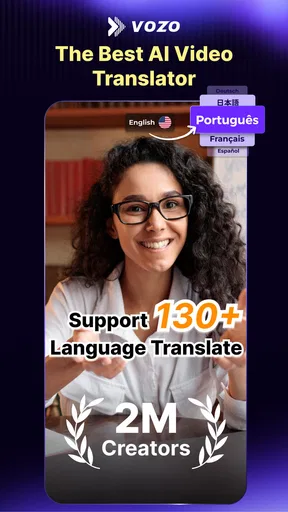
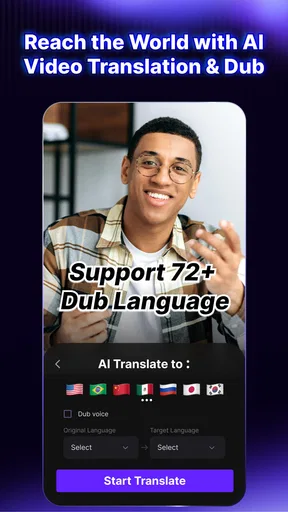
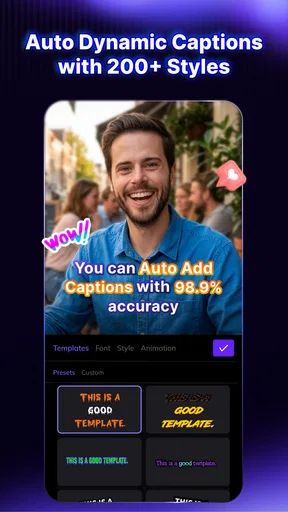
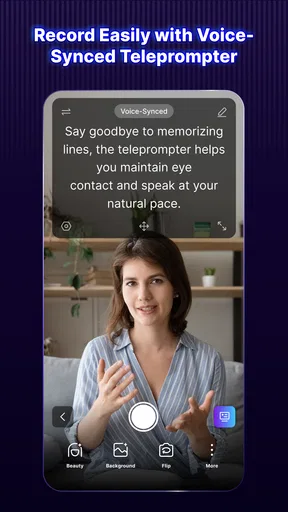
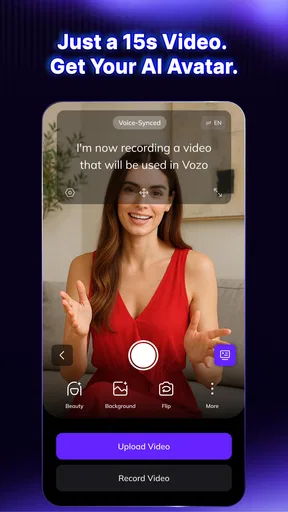
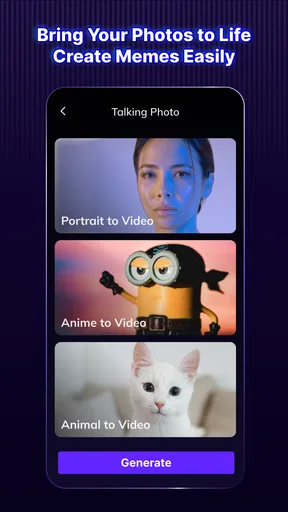
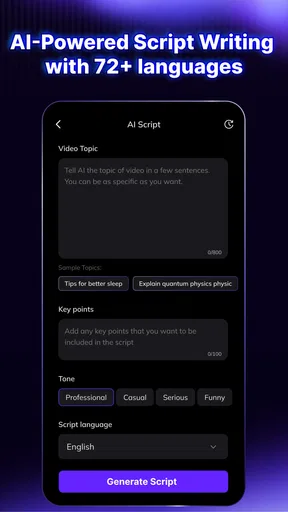
Our Review of Vozo AI Video Translator & Dub
 Analysis by Appyee
I use captioning tools most when I already have a clip worth sharing but don’t want the finishing work to take longer than making it. Blink Captions by Vozo AI is aimed at that moment: it brings several AI-assisted video and image tasks together, with captions as the most obvious starting point. I’d consider it for quick social posts, short talking clips, or experimenting with an avatar, while keeping a little time aside to check the result rather than assuming the first output is ready to publish.
A practical starting workflow
For a first project, I’d begin with one short clip and a clear goal: make the speech easier to follow, translate it for another audience, or try a talking-video treatment. Keeping the first test small makes it easier to judge whether the result suits the material before investing effort in a longer edit. It also gives you a chance to learn the app’s flow without turning a simple post into a full production session.
Captioning is most useful when I treat the generated text as a draft. Names, specialist terms, slang, and words spoken quickly are exactly the kinds of details I would review before sharing. A sensible habit is to watch the clip once for meaning and once for timing, then correct anything that could change the message or distract from it. That final check matters even when the overall transcript looks convincing.
The other tools broaden the possible workflow. A talking video or avatar can help when I want a presenter-like format, while translation can support a version intended for people who speak another language. AI photo generation offers a different creative direction from editing existing footage. I’d test these options on content where experimentation is welcome, rather than relying on them for a high-stakes announcement that needs exact wording and a carefully controlled visual style.
Settings and choices worth reviewing
Before settling on a final version, I’d look carefully at whatever caption, language, and presentation choices the app offers for that project. The right result depends on the job: a casual clip can tolerate a more playful feel, while an instructional video benefits from captions that are easy to read and faithful to the speaker. I would also check the finished clip on a phone screen, since details that look clear while editing may be less comfortable to follow at normal viewing size.
A useful trade-off is speed versus control. Letting AI handle an initial pass can save effort, but it doesn’t remove the need to decide what should stay, what needs correction, and whether the finished style fits the audience. If precise editing is the main goal, a conventional video editor may offer a more familiar hands-on process. Blink makes more sense when its AI-assisted tools are the reason you opened the app in the first place.
Repeatable habits for quicker results
I’d make the process repeatable by preparing a clean source clip, choosing one task at a time, and reviewing the output before moving to another tool. Clear speech and a focused message give automatic captions a better chance of being useful than a noisy recording or a clip where several people talk over each other. For recurring posts, keeping your own preferred wording and visual style in mind also helps you edit generated material consistently, even if the app does not make every choice for you.
Here’s a realistic use: I record a short update during a quiet moment, use captions to make it easier to watch without sound, then check the text and playback before sharing. If I need to reach a different-language audience, I can explore the translation option as a separate step and review that version on its own. Splitting the work this way makes errors easier to spot than trying to change everything at once.
Where it may not be the right fit
AI-generated captions and media treatments are not a substitute for editorial judgement. If a clip includes confidential information, sensitive personal details, or wording that must be exact, I’d be cautious about choosing an automated workflow and would inspect every output closely. Likewise, anyone who wants detailed control over a complex timeline, layers, or frame-by-frame finishing may be happier in a dedicated editor built around manual editing.
There is also a practical cost question. The app is free to install, but it offers in-app purchases priced from $7.99 to $189.99 per item. I’d try the free experience first and decide whether a paid option is worthwhile only after confirming that the particular tools I need fit my routine. The broad range makes it especially sensible to avoid buying on impulse before testing the workflow.
What Blink Captions is All About
First things first, Blink Captions by Vozo AI is an app designed to make captioning your media as easy as pie. You know those times when you’ve snapped the perfect pic but can’t think of a witty caption? This app’s got your back. It uses AI to generate captions that can range from funny to inspirational. And let’s be real, who doesn’t love a good, clever caption?
Getting Started with Blink Captions
Let’s talk about the setup process. The installation is a breeze—just a quick download from the app store, and you’re ready to roll. Once you open it up, you’re greeted with a clean and user-friendly interface. I’m talking minimalistic design that makes navigation a piece of cake. You don’t need to be tech-savvy to figure this one out, which is always a plus in my book.
After you’ve got it installed, you can dive right into the fun stuff. Simply upload a photo or video from your gallery, and the app gets to work. The AI analyzes your media and suggests captions based on the content. It’s almost like having your own personal social media assistant!
Features that Stand Out
Now, let’s get into the nitty-gritty of what makes this app tick. One of the standout features is the variety of captions it offers. From the get-go, you can choose between categories like motivational, humorous, or even poetic. There’s something for every mood and every occasion.
Another cool feature is the customization options. You’re not just stuck with the captions the AI suggests. You can tweak them to add a personal touch or even mix and match phrases to craft something uniquely yours. This flexibility is a game-changer, especially for those of us who like a little creative control.
And let’s not forget about the sharing capabilities. Once you’ve settled on the perfect caption, sharing it with your friends on social media platforms is just a tap away. The app seamlessly integrates with all the major platforms, making it easy to show off your creativity to the world.
My Personal Take
So, what’s my verdict after spending some quality time with this app? Honestly, I’m pretty impressed. The AI does a great job at generating relevant and engaging captions. It’s not perfect, but it’s definitely better than sitting there scratching your head trying to come up with something on your own.
One thing I particularly loved was how intuitive and responsive the app is. The developers clearly put a lot of thought into the user experience, and it shows. Plus, the app didn’t crash or lag during my usage, which is always a bonus.
Who I’d recommend it to
The app is in the video players and editors category, and Blink by Vozo AI for Talking Videos is the developer. Its mix of captions, talking-video tools, translation, avatars, and AI photo generation makes it appealing to people who want to make a post without assembling several separate apps. I’d especially recommend trying it if short-form content is part of your everyday routine and you value a quick starting point more than detailed manual control.
It may be less suitable if you mainly need a conventional editor for trimming, arranging many clips, or building a carefully layered project. The useful comparison is not that Blink replaces every editor, but that it approaches media work through AI assistance. A standard editor is often the better choice when your decisions are precise and specific; Blink is worth exploring when generating or adapting content is the part you want help with.
It is free to install, rated for Everyone, and has a 4.5 average from around 103,000 ratings, with over 1 million installs. Those figures suggest a substantial audience, but they don’t tell me whether the tools match an individual workflow. I’d judge it by running one real clip through the process and seeing whether the corrections and choices still feel manageable.
Small checks that prevent avoidable rework
One useful habit is to keep the original clip untouched and treat each AI-assisted result as a working version. That makes it easier to return to the source if a caption, translation, or presentation choice changes the meaning. I’d also avoid stacking several transformations before reviewing anything: check one result, decide whether it helps, and only then move to the next step. This is a simple way to keep creative experiments from becoming a confusing chain of edits.
For people who publish regularly, a short review checklist can make the app more valuable than simply generating more options. I’d check that names and key phrases are right, that the captions remain readable while the speaker is moving, and that the finished clip still sounds like the person who made it. The AI can help with the first draft, but the creator’s voice is what keeps a routine post from feeling generic.
How it fits a real posting routine
Imagine recording a quick demonstration for a small business or a hobby page. I’d start with a focused take, add captions so viewers can follow along without relying on audio, then inspect the text against the spoken instructions. If the clip is meant for a broader audience, translation could be a separate experiment, with the translated version checked just as carefully. For an occasional post, that may be enough; for a polished campaign with strict brand rules, a more controlled editing setup could be the safer choice.
Another good use is turning a still image into a starting point for a more expressive post, or trying an avatar when appearing on camera is inconvenient. Those are creative options, not guarantees that every output will suit every subject. I’d compare the result with the simpler alternative—using the original photo or recording a straightforward voiceover—and keep the AI version only if it makes the message clearer or more engaging.
What to expect before committing
The current version is 5.11, and the app requires Android 9 or later. If you are considering it on a device that is close to that requirement, checking compatibility before planning a project is a practical first step. The in-app purchase range runs from $7.99 to $189.99 per item, so the free starting point is useful, but I would read the purchase choices carefully and connect any spending to a specific need rather than assuming every feature is included at no cost.
One question people naturally have is whether captions can be trusted without review. My answer is no: they are a convenience, not a final authority. Another is whether it suits complete beginners; its straightforward setup makes trying it approachable, though anyone can still benefit from testing with a short, low-pressure clip first. And if the main concern is making a professional edit with exact visual control, I’d compare it with a dedicated editor before settling on Blink as the only tool.
Wrapping It Up
All in all, Blink Captions by Vozo AI is a fantastic tool for anyone looking to spice up their social media game. It’s fun, easy to use, and offers a nice blend of automation and customization. Whether you’re a social media influencer or just someone who loves sharing moments with friends, this app is definitely worth checking out.
So, go ahead and give it a whirl. You might just find the perfect caption for your next Instagram post!
Verdict
Strengths of Vozo AI Video Translator & Dub
- User-friendly interface for quick editing.
- Wide variety of caption styles available.
- Supports multiple video formats easily.
- Real-time preview of caption changes.
- Automatic syncing with social media platforms.
Limitations of Vozo AI Video Translator & Dub
- Limited free version features.
- Occasional glitches in caption alignment.
- Requires stable internet for best performance.
- No option for manual caption adjustments.
- Subscription model can be pricey.
Similar Picks in This Category
View All
Google TV
Google LLC3.9

iTunes
Apple4.7

YouTube
Google LLC3.8

MX Player
Amazon Mobile LLC4.2

CapCut - Video Editor
Bytedance Pte. Ltd.3.5

PLAYit-All in One Video Player
PLAYIT TECHNOLOGY PTE. LTD.4.5
Frequently Asked Questions
What is Blink Captions by Vozo AI?
Blink Captions by Vozo AI is an innovative app designed to automatically generate captions for videos. It utilizes advanced AI technology to provide accurate and synchronized captions, enhancing accessibility and engagement for a diverse audience. Whether you're a content creator or just sharing videos with friends, Blink Captions ensures everyone can enjoy your content.
How does Blink Captions ensure caption accuracy?
Blink Captions employs cutting-edge AI algorithms to transcribe audio into text with high precision. The app continuously updates its AI models to adapt to various accents and speech patterns, ensuring that captions are not only accurate but also contextually relevant. This commitment to accuracy makes it a reliable tool for captioning needs.
Is Blink Captions user-friendly for beginners?
Yes, Blink Captions is designed with a user-friendly interface, making it accessible for users of all experience levels. The app provides an intuitive setup process along with easy-to-follow instructions, allowing even those new to video captioning to effortlessly generate captions for their videos without requiring technical expertise.
Can Blink Captions handle multiple languages?
Indeed, Blink Captions supports multiple languages, catering to a global audience. The app’s advanced AI can transcribe and translate audio into various languages, making it ideal for content creators looking to reach international viewers. This multilingual capability significantly expands the app's usability across different regions.
What are the system requirements for Blink Captions?
Blink Captions is compatible with both Android and iOS devices. To ensure optimal performance, it is recommended to have the latest operating system updates installed on your device. Additionally, a stable internet connection is necessary for the app to process and generate captions efficiently.
